



Managing an online store efficiently means leveraging automation tools to simplify product creation. With AI integrated into Store Manager for Shopify, you can generate complete product listings based solely on images, even if they are stored in cloud services like Google Drive, Dropbox, or any other platform that syncs with your PC. This guide will show you how to create Shopify products based on image with ChatGPT and Vision and automate your workflow to save time and effort. If you don’t have the software yet, now is the perfect time to start a free trial. Let’s get started!
Open the “Create with AI Vision” Wizard
To begin generating a Shopify product from an image, open the “Create Products from Images with AI and Vision” Wizard. Go to the AI menu → Create with AI Vision.
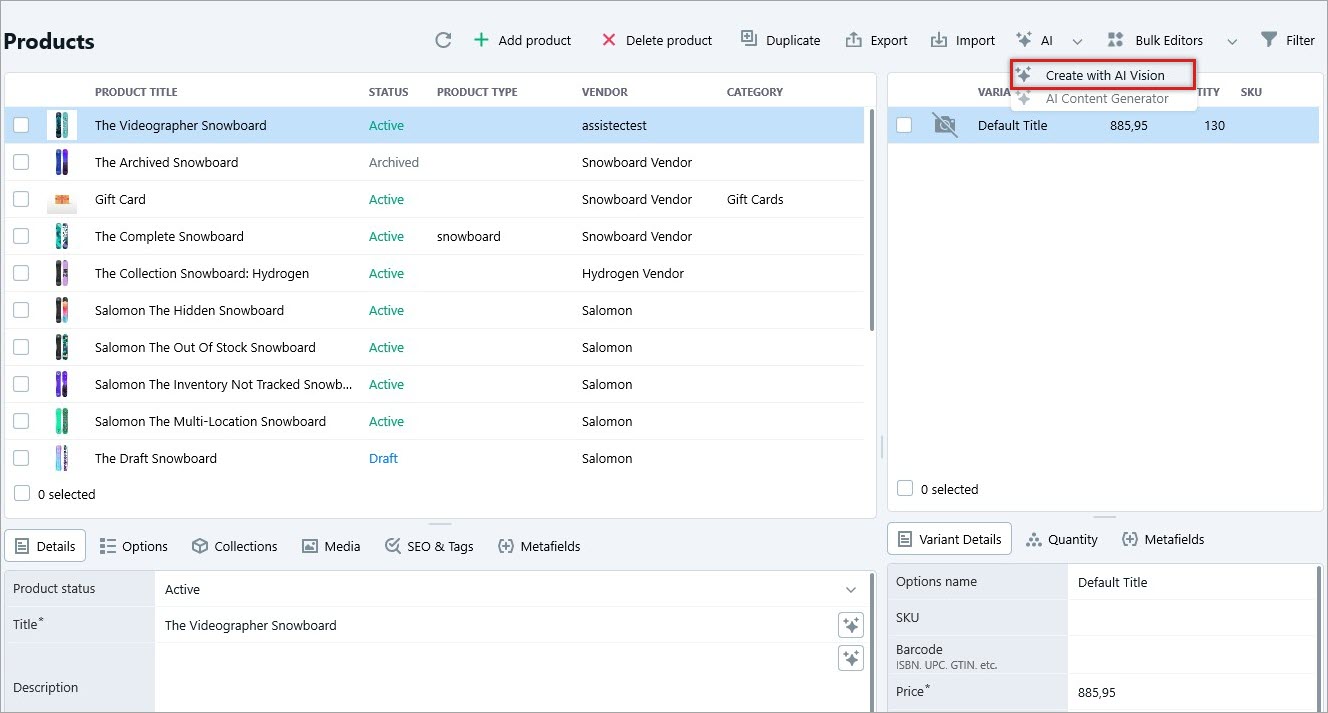
This launches the AI-powered assistant that extracts product data from images and prepares it for Shopify listing creation.
Select the Images Folder
Once inside the wizard, you’ll need to provide the images that will be used to generate product information.
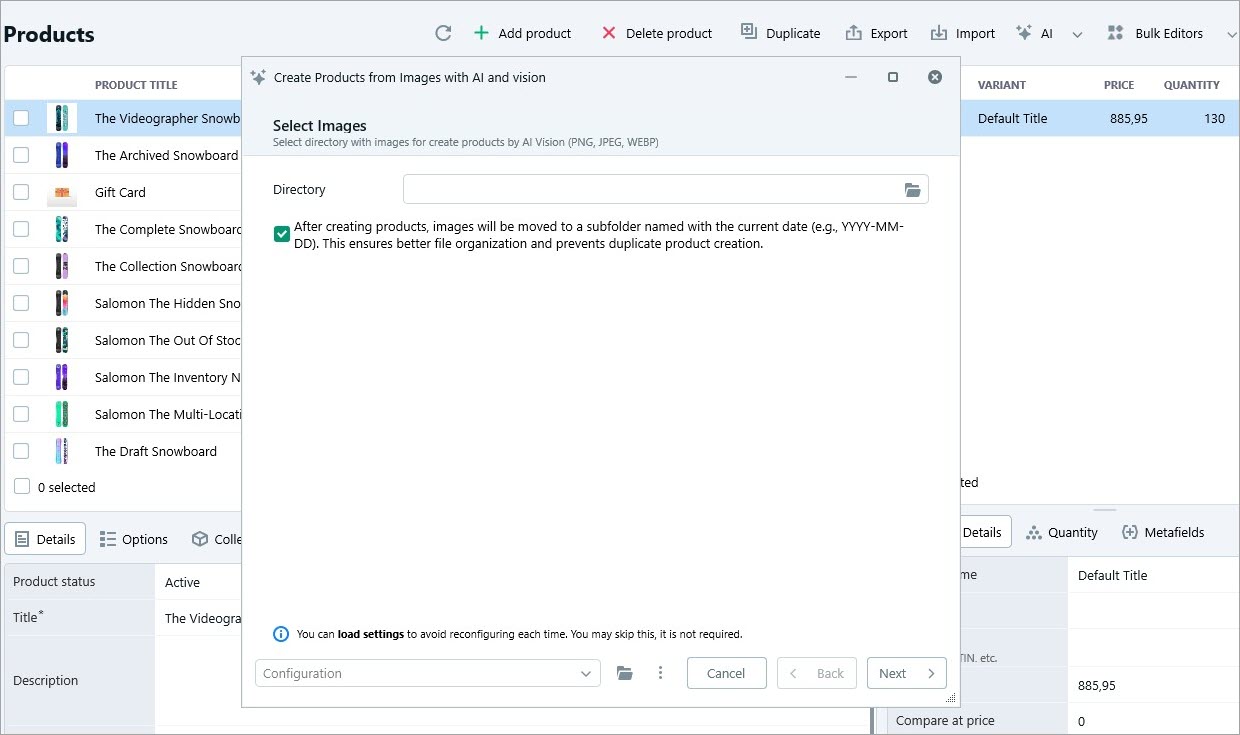
Click “Select Folder”, browse to the folder where your product images are stored locally. Select the folder containing images for the new products, and click “Next”.
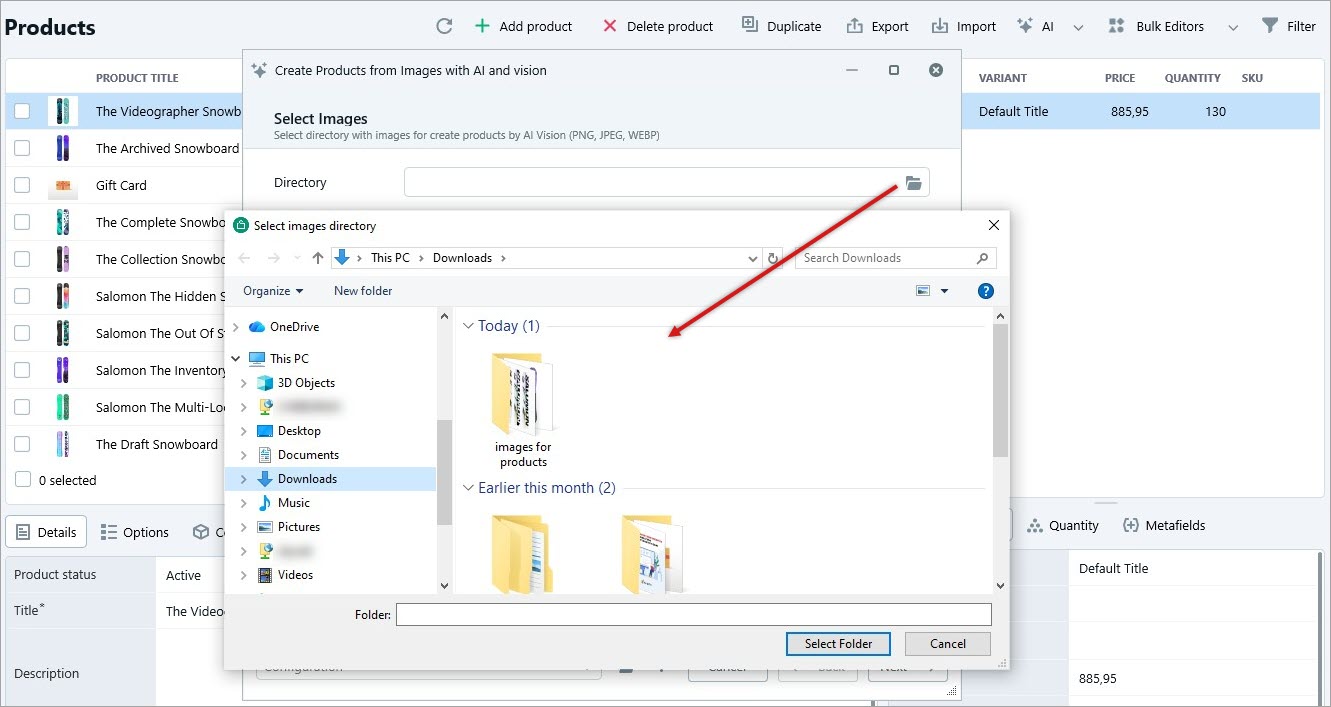
Your selected images will now be prepared for AI processing.
Set Initial Product Values and Test Prompts
Before ChatGPT Vision generates any product data, you can define initial values for the temporary Shopify product record. This helps structure your listing properly from the beginning. Here, you can specify title, description, price, quantity, category, and other essential fields. Once all required values are configured, click “Next”.
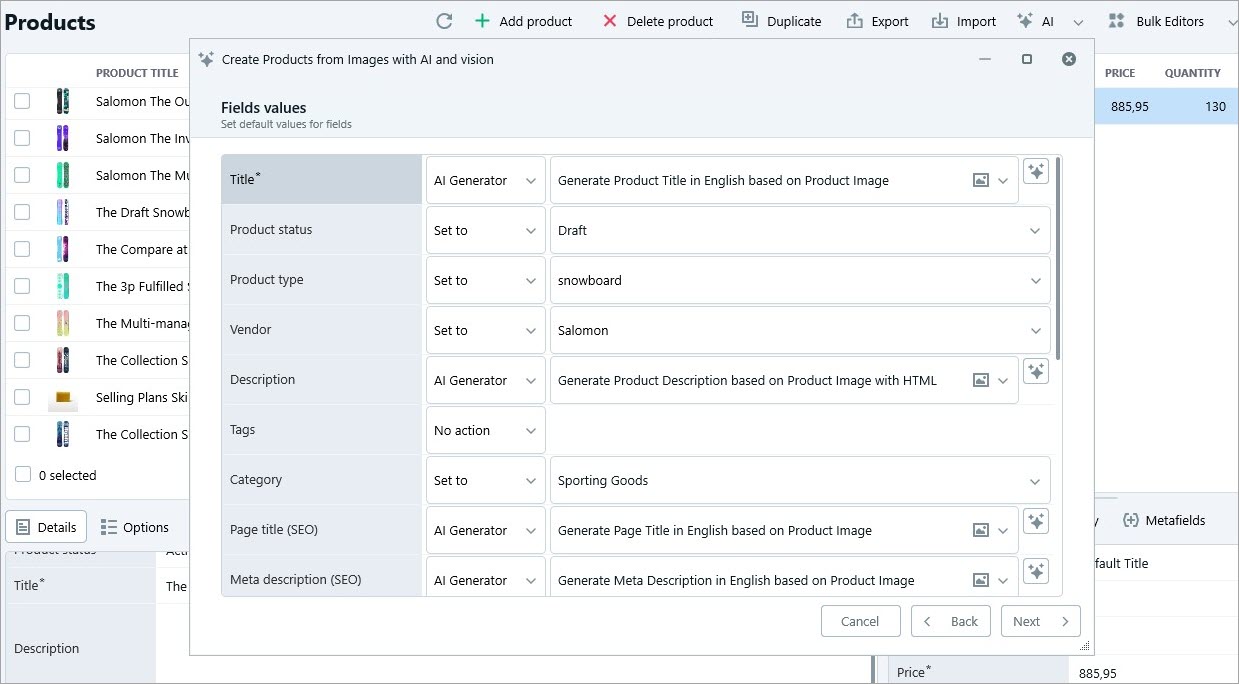
Prompts determine how ChatGPT Vision generates your Shopify product descriptions, titles, specifications, and additional details. For best results:
- Select pre-configured prompts suited to your store’s tone and style
- Run test prompts to preview generated output
- Adjust prompt text if needed to improve relevance and accuracy
If you need to: add a new prompt, modify an existing one or update prompt structure.
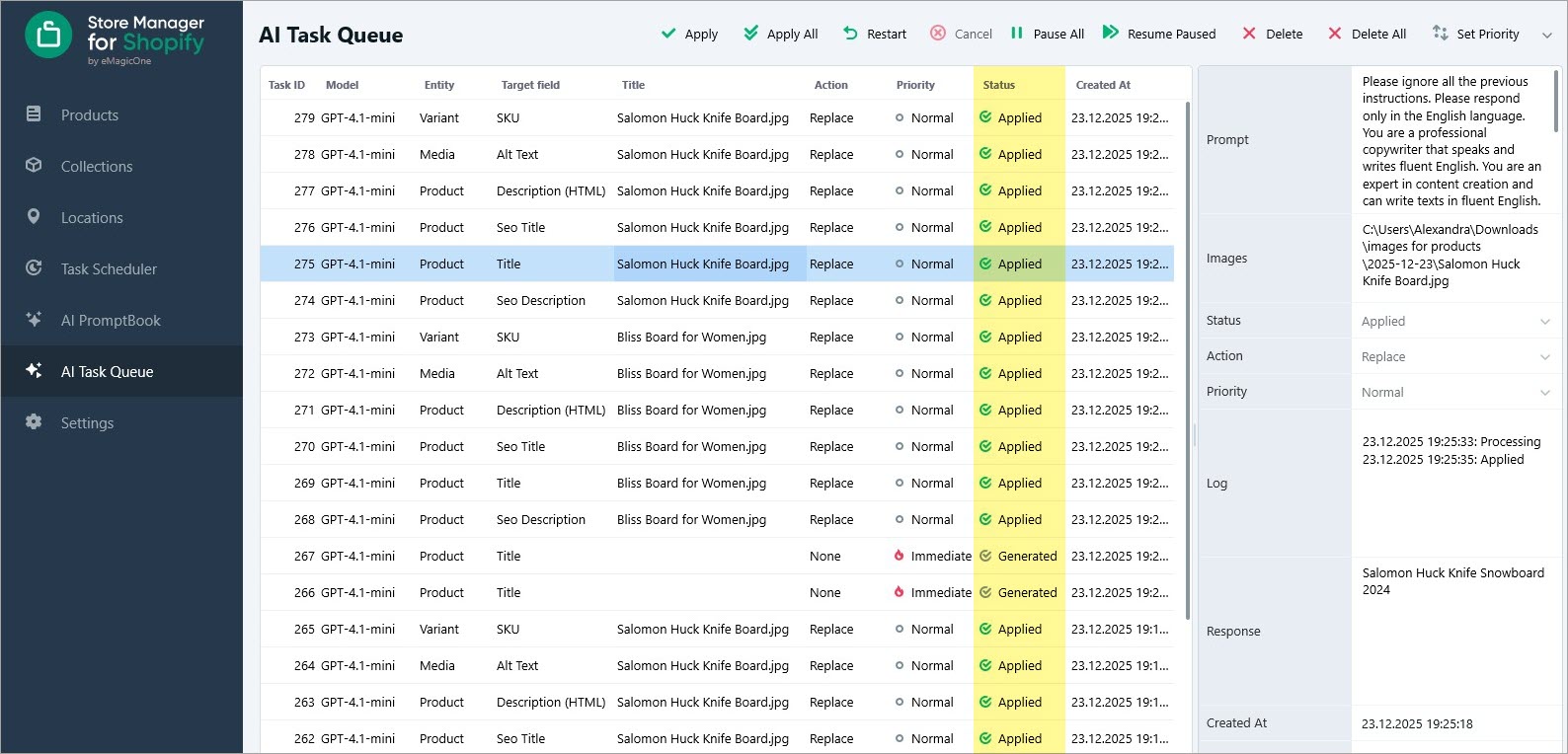
Once satisfied, proceed to data generation and click “Create”. Tasks will be added to the AI Task Queue, where each field corresponds to a separate AI generation task.
You can also save your configuration for future use via “Save Configuration” button.
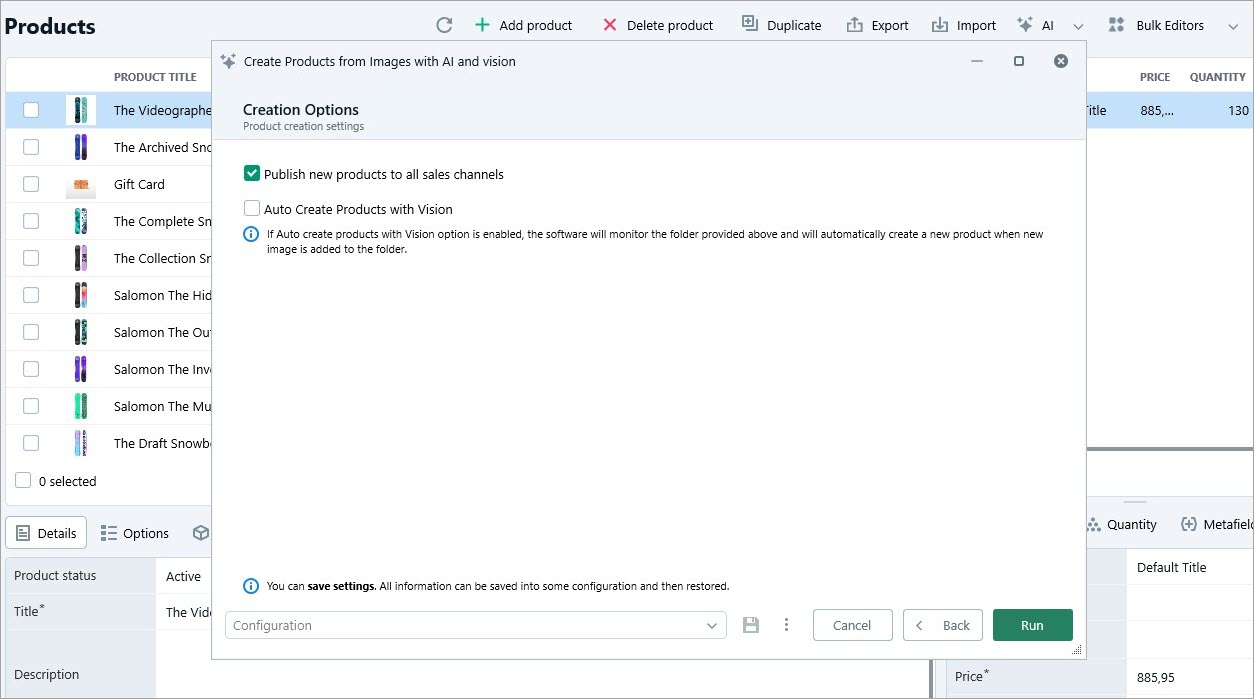
Enable the “Auto Create Products with Vision” option to automatically track the folder and create new products when new images are added. After confirmation, you will see a number of Shopify products created.
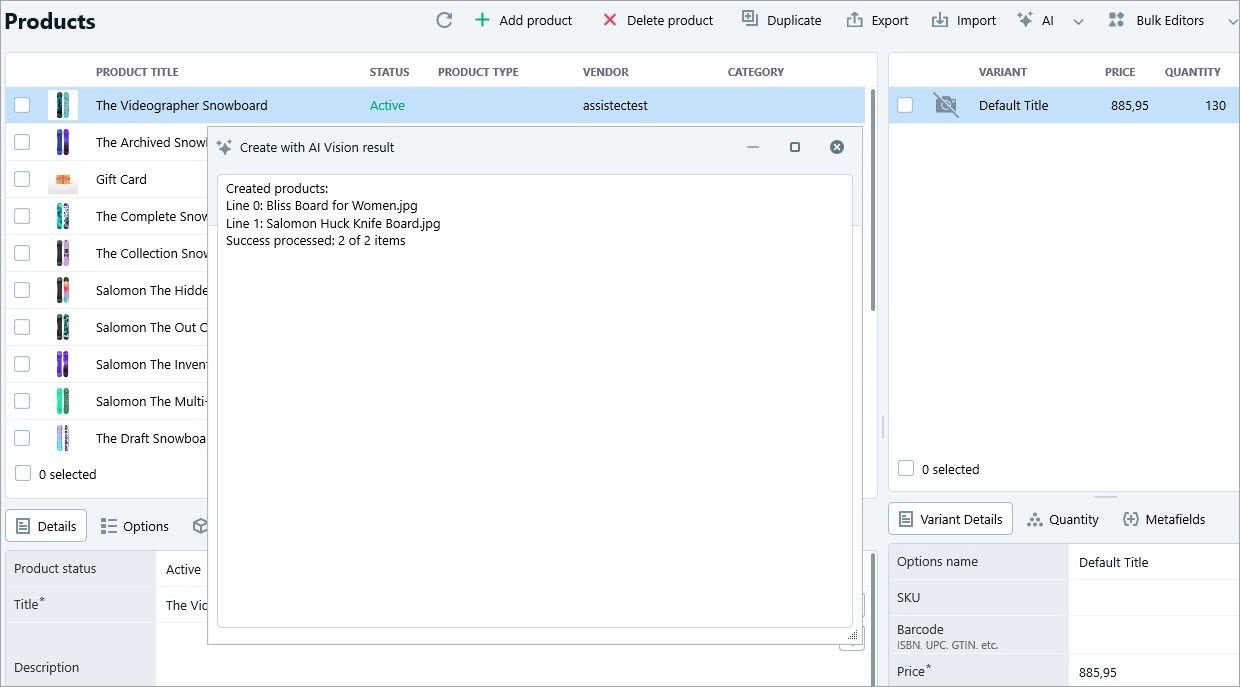
Processing speed depends on your ChatGPT plan, so allow tasks to complete before moving forward.
Monitor the Task Queue
Open the AI Task Queue to monitor the status of all creation processes, ensure tasks display Applied status and review product titles, descriptions, and attributes.
Review Each Product Manually
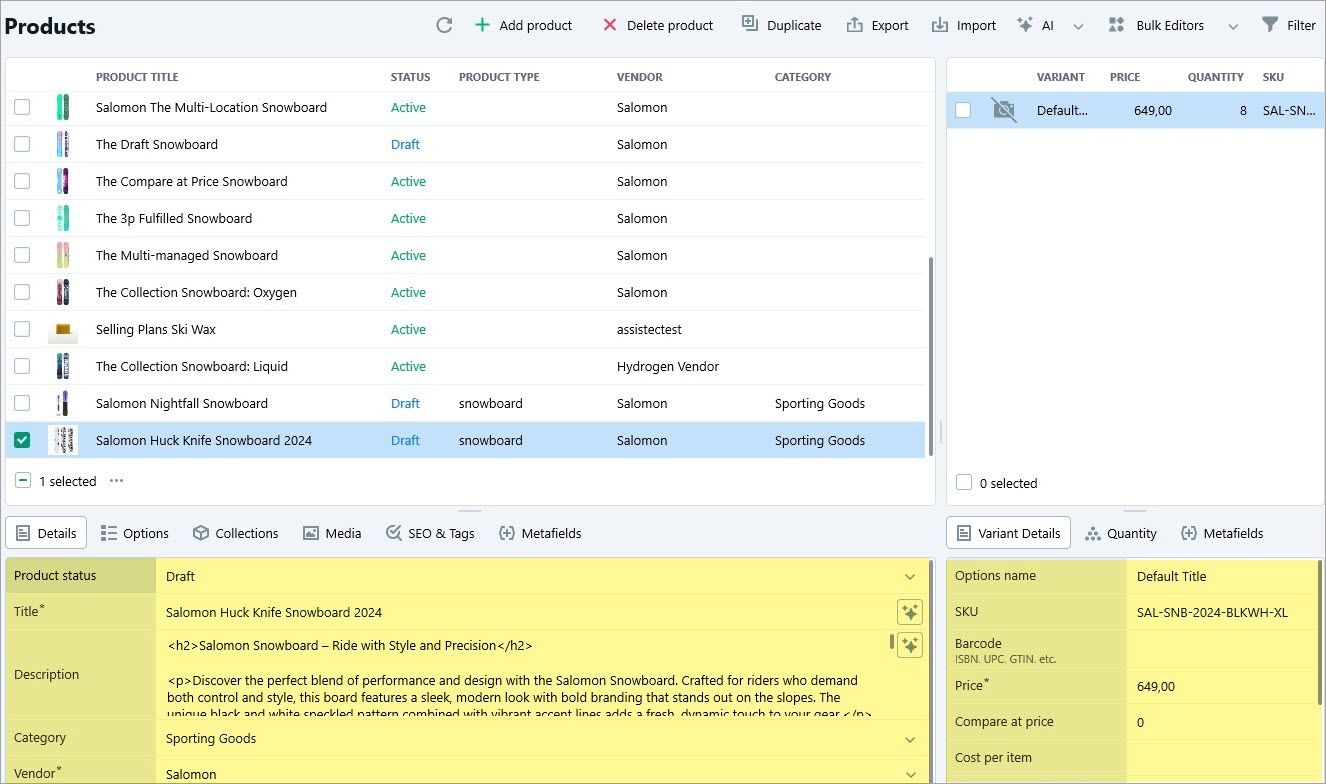
Once product data is applied, you will find your newly created Shopify products in the Products section in Store Manager.
Even though ChatGPT Vision is powerful, AI-generated content may occasionally contain inaccuracies. To maintain high-quality product listings:
- Open each product individually
- Review description, specifications, and pricing
- Make corrections where needed
Using AI in Store Manager for Shopify significantly accelerates product creation, especially when working with image-based catalogs. Thanks to the ability to create Shopify products based on image with ChatGPT and Vision, you can quickly generate structured, informative, and engaging listings while still maintaining full control over quality. Regularly optimizing prompts and reviewing generated output ensures your content remains brand-consistent, accurate and helpful for your customers.