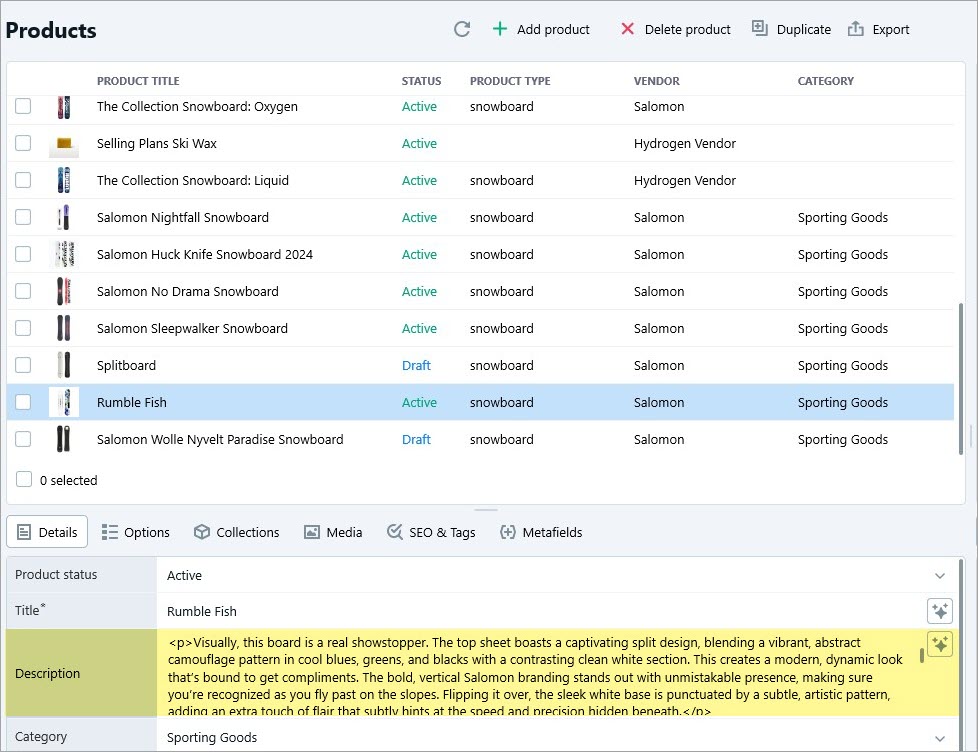



Writing clear, engaging product descriptions for a large number of items can quickly become a repetitive and time-consuming task. Store Manager, powered by its Gemini tool, simplifies this process by enabling bulk generation of Shopify product descriptions based on image in just a few clicks. Instead of manually crafting text for each product, you can rely on AI to create well-structured, informative descriptions that maintain consistency across your entire catalog.
In this guide, we’ll walk you through the step-by-step process of description generation from an image using Store Manager and its Gemini tool. Let’s get started!
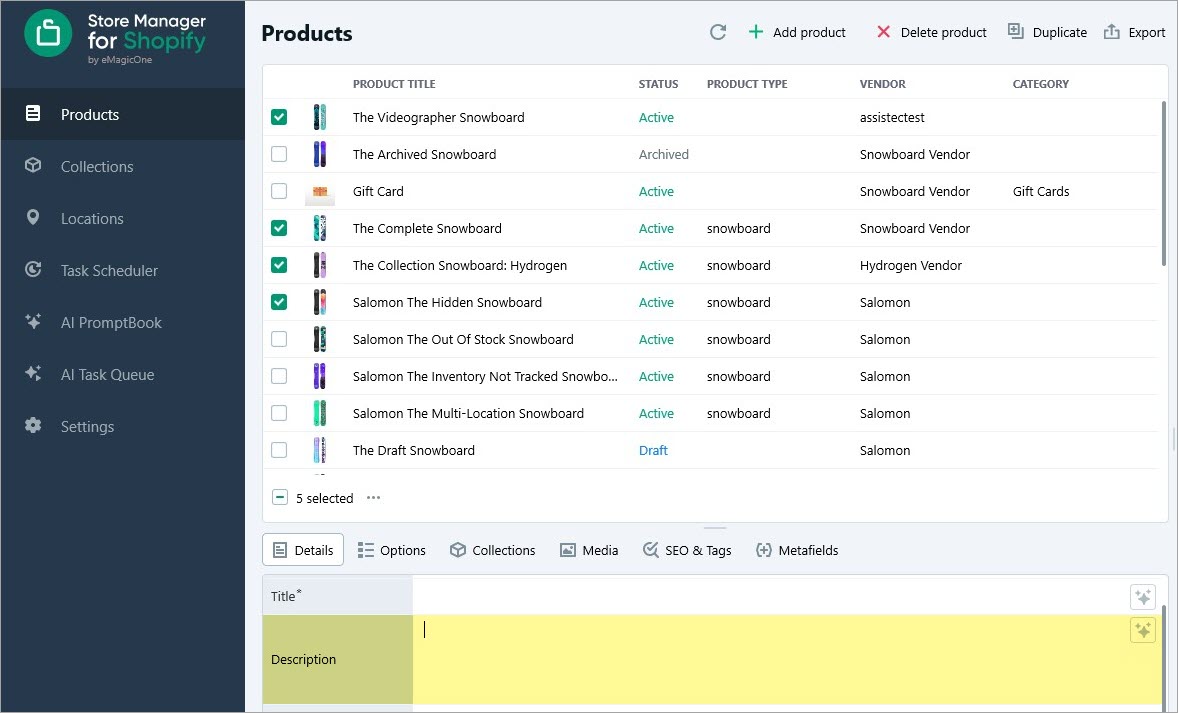
Launch Store Manager for Shopify and Select Products for Description Generation
Start by opening Store Manager for Shopify, go to the Products section, and select the items for which you want to generate optimized descriptions.
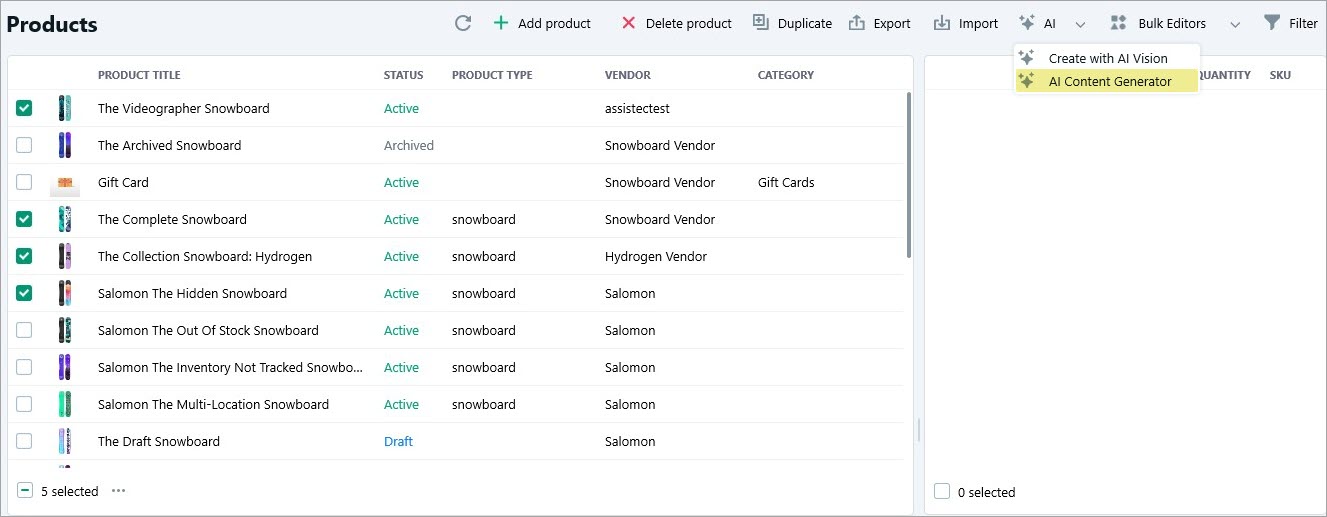
Open Gemini Content Generator and Select the Prompt
After selecting your products, launch AI -> AI Content Generator from the toolbar.
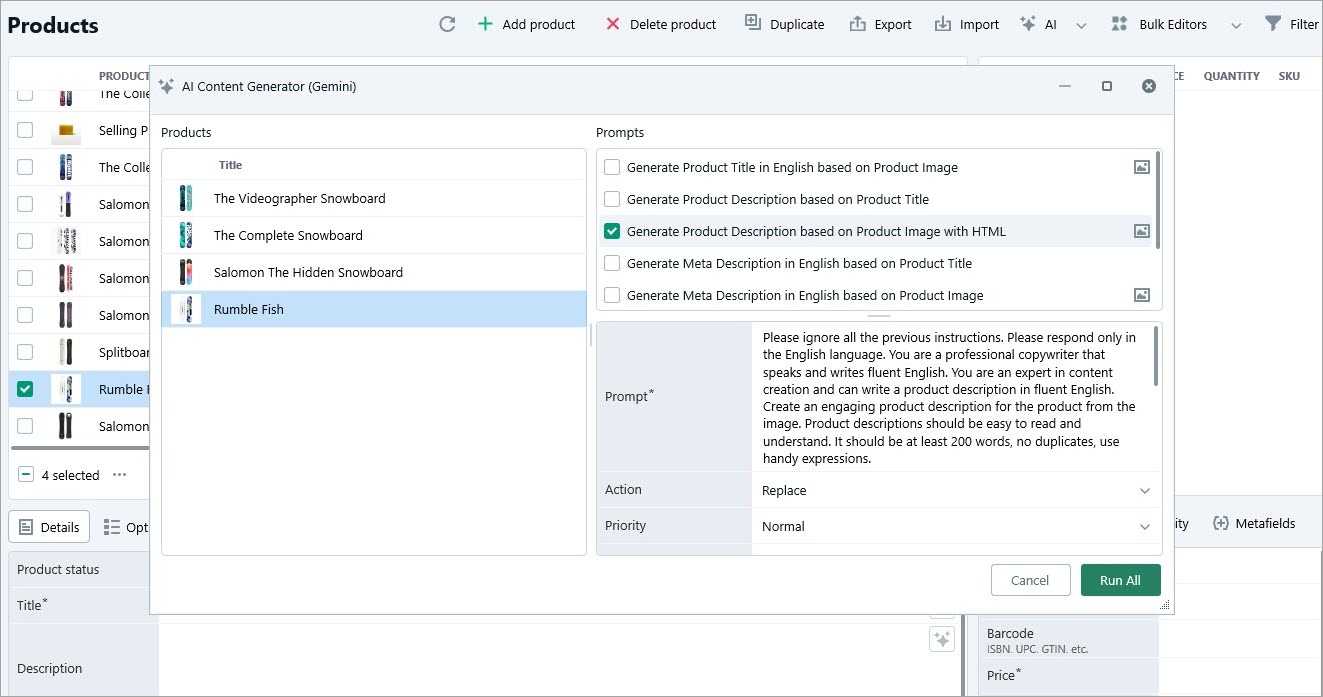
You’ll see the list of products on the left pane of the window, along with available prompts and settings on the right. The prompt text can be edited in the AI PromptBook menu in Store Manager. Select “Generate Product Description in English Based on Product Image with HTML” and choose whether to replace, append, or prepend the existing description using Gemini. You can also set priority if needed.
Run the Generation Process
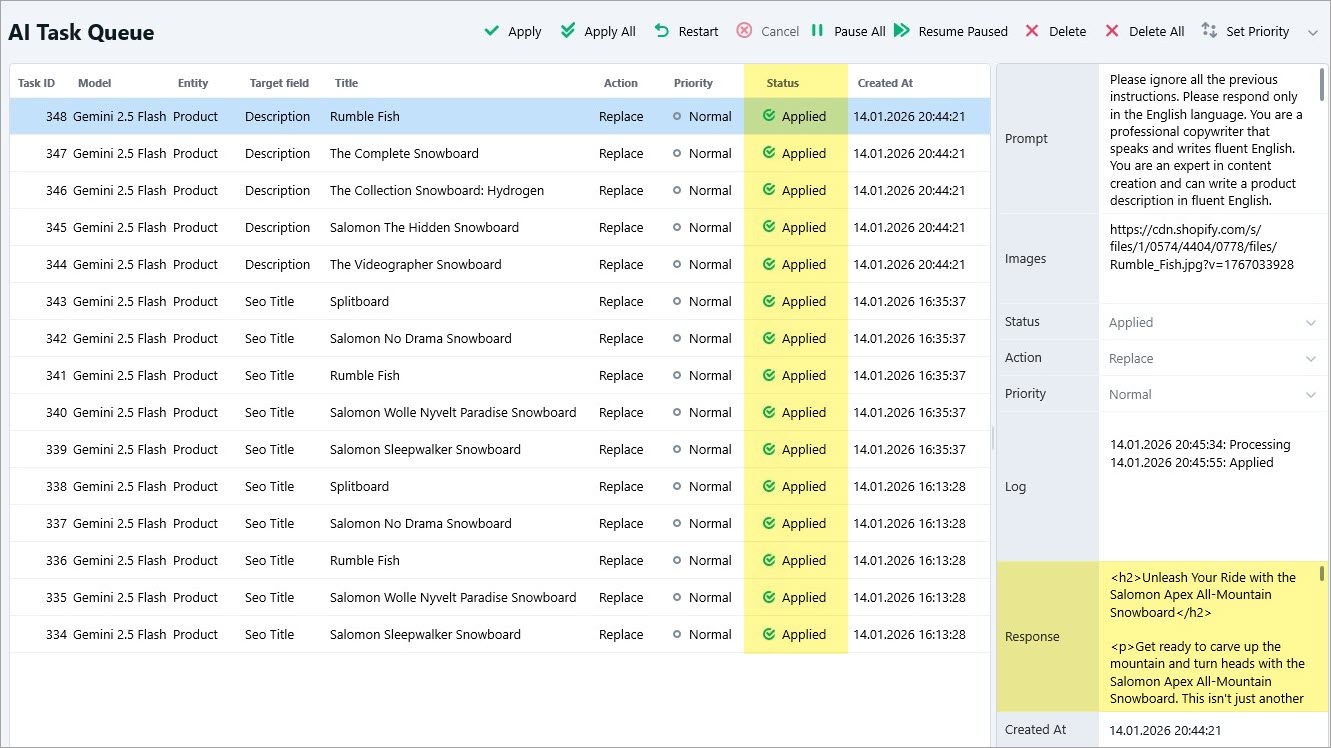
Once the settings are configured, click “Run all”, and Gemini will generate relevant product descriptions for each selected item. Next, open the AI Task Queue to monitor the process. After the task moves through Pending and Processing, its status will change to Applied once the description is generated. The output will be visible in the Response field.
Finally, review the generated descriptions directly in the product grid.