



Accurate and up-to-date inventory is essential for any Shopify store. Store Manager helps merchants massively manage Shopify product inventory via import, saving time and reducing the risk of manual errors. With the built-in Import Wizard, you can upload inventory quantities from a .csv file in just a few steps. You can export product inventory CSV to download current stock levels, update quantities in bulk, and re-import it to your Shopify store. Follow the instructions below to seamlessly import and update product quantities, inventory, and other stock-related fields.
Navigate to the Products Section and Launch the Import Wizard
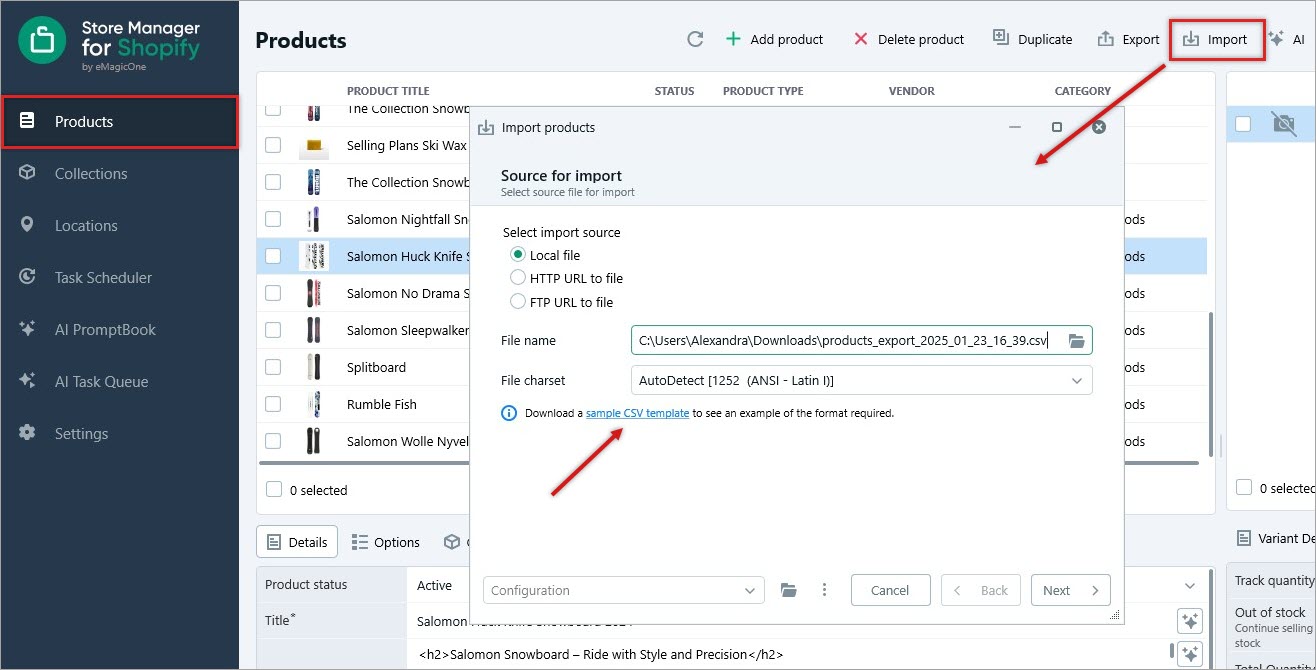
In Store Manager’s left-hand menu, open the Products tab. Then click the “Import” button to launch the Import Wizard. This tool will guide you through each step, making the import process fast and user-friendly — even when working with large catalogs. At this step, you can download a sample CSV file as a template to format your data properly for further upload or export only the needed fields separately.
Adjust the File and Upload It
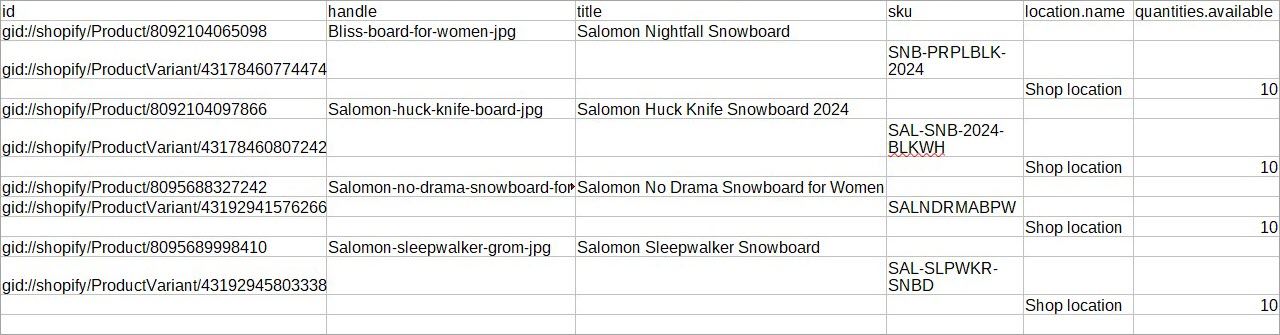
In our case, we’re using the following required fields: ID, handle, title, SKU, location.name, and quantities.available.
Next, press “Browse” button in front of the “File Name” field in the Import Wizard and locate the ready-made CSV file on your computer, click “Next” to continue.
Configure Delimiters
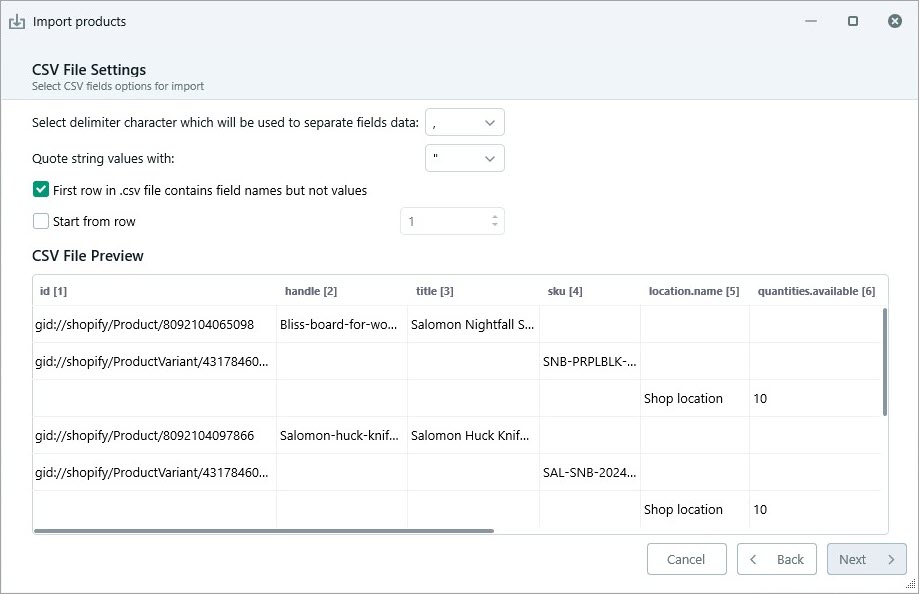
Your Shopify inventory import file may use different delimiters (such as commas, semicolons, or tabs). In this step, select the correct delimiter so the data is read accurately. When the preview shows your columns correctly aligned, click “Next” to proceed.
Map CSV Columns to Shopify Database Fields
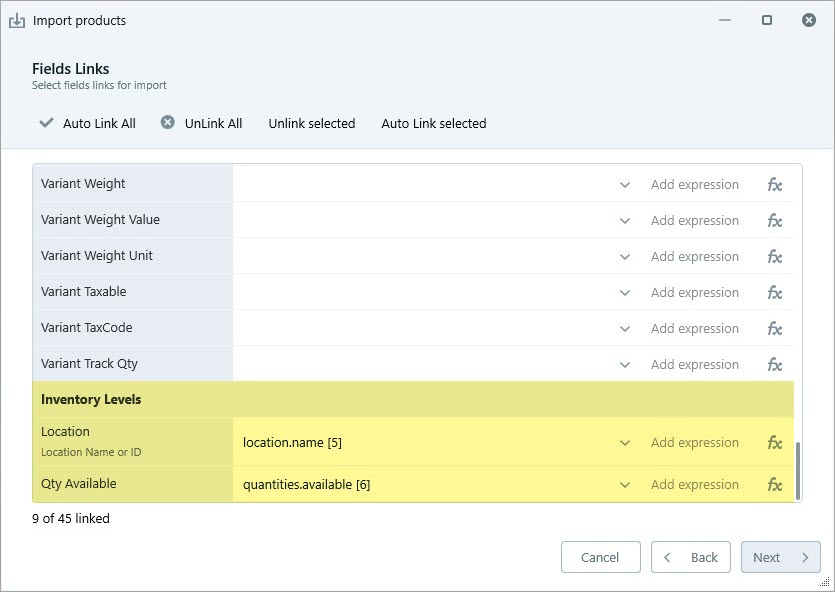
Now match each column in your file to the corresponding Shopify field. At this stage, make sure to include Inventory Levels fields along with the required ones. Correctly linking the inventory fields ensures Store Manager knows exactly what stock levels to update in Shopify.
Select Import Options
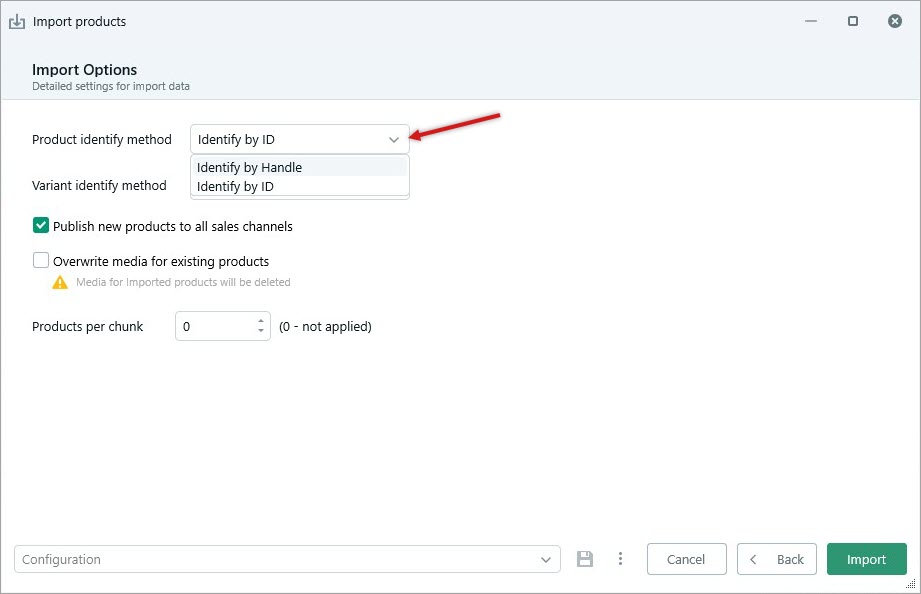
Choose how the data should be applied to your store – whether you want to add products to all sales channels or only to specific ones. Decide whether you want to overwrite images for existing products. Select product identification method (“Identify by Handle” for new products and “Identify by ID” for updating the existing). Hit “Import”.
Review the Summary and Finish the Import
Once the Shopify inventory import is complete, a summary window will display the results, including number of updated products, any skipped lines and possible warnings or validation errors if any.
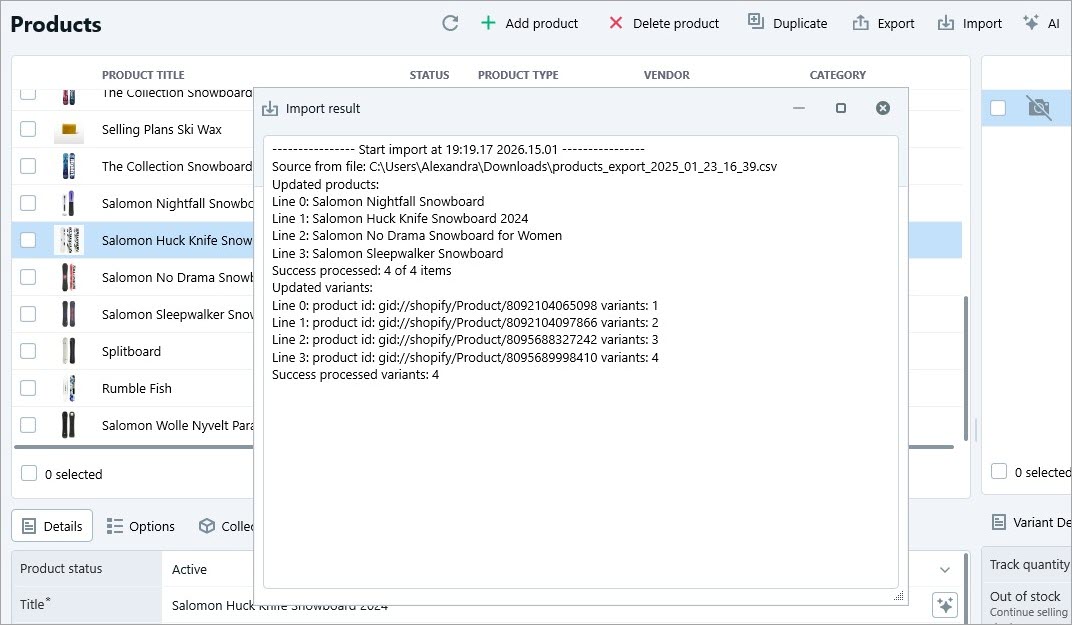
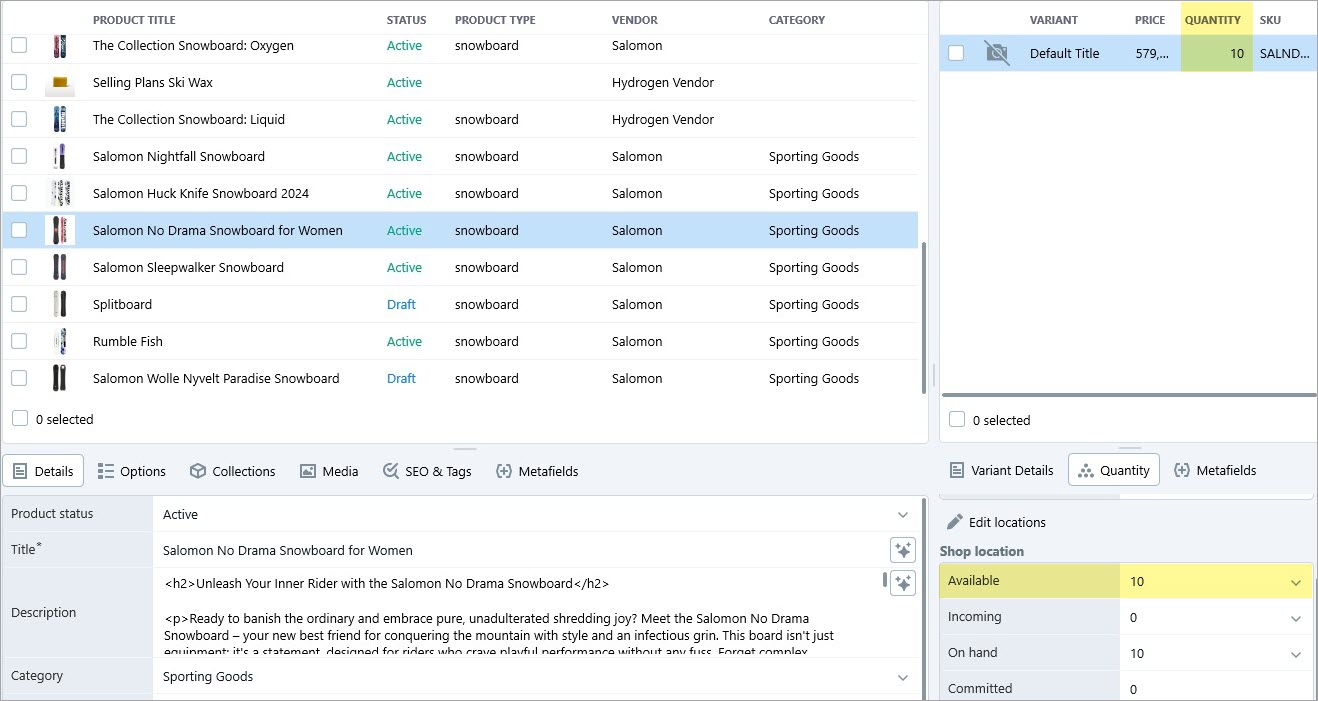
Review the summary in the lower grid to ensure everything was processed correctly.
Store Manager makes Shopify inventory imports fast, reliable, and scalable. Whether updating a few products or thousands of them, the smart Import Wizard helps you manage stock in a structured, step-by-step workflow — minimizing mistakes and saving valuable time.